
This guide is for editors. Open Document Manager in Contentful's main navigation.
The explorer#
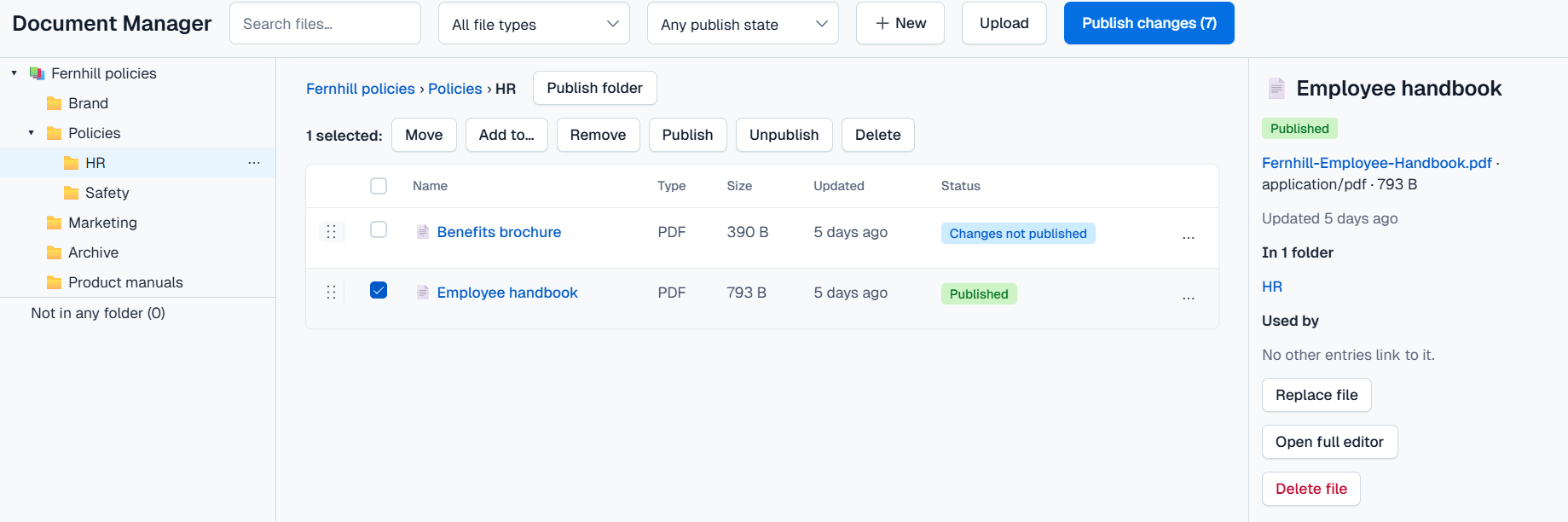
| Area | What it shows |
|---|---|
| Header | Search, a file type filter, a publish state filter, New, Upload and Publish changes |
| Left: tree | Libraries and their folders, then Not in any folder. Expand, collapse and move with the arrow keys. |
| Middle: contents | The path to the open folder, and its items with Name, Type, Size, Updated and publish state |
| Right: details | The selected item, or the open folder if nothing is selected |
Each library and folder in the tree has a … menu: hover over it, or select it, to see the button. Right-click opens the same menu, and so does Shift+F10 or the Menu key on the keyboard. Opening it selects that folder. The menu has New folder inside…, Upload files here…, Add to… (not on libraries), Open full editor and Delete….
A ⧉2 next to a name means the item sits in two folders. A number badge means the item has warnings. See Warnings.
Each folder has its own address, so you can link a colleague to it. If the space has more than 10,000 documents, the page warns that it may be slow.
Search looks at titles and file names across every item, not just the open folder. The file type and publish state filters narrow the list.
Libraries, folders and files#
| Kind | What it is |
|---|---|
| Library | A top-level root. It can't go inside another item. |
| Folder | Holds files and other folders. |
| File | One Contentful asset plus a title, slug, description and optional version label. |
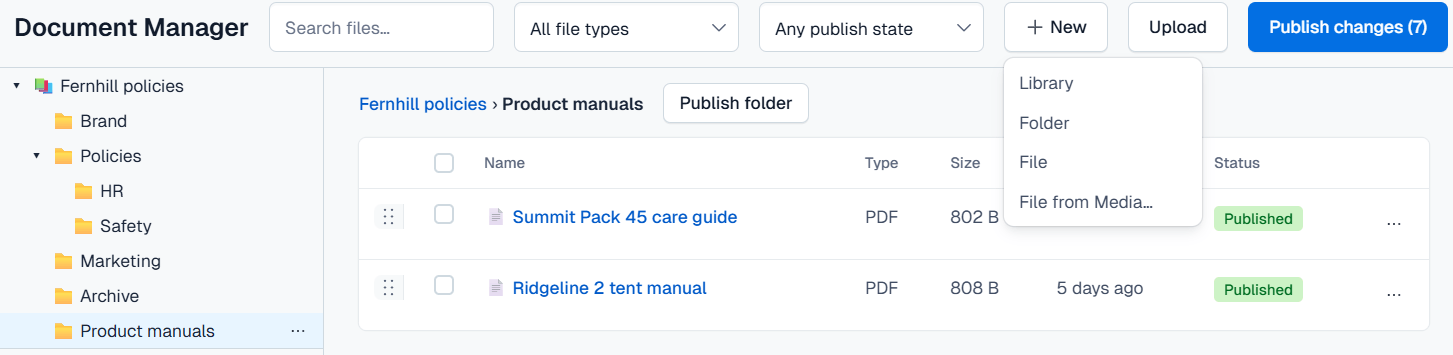
Choose New in the header:
- Library creates a top-level library.
- Folder creates a folder inside the open folder. Without an open folder, it appears under Not in any folder.
- File opens your file picker and uploads, the same as Upload.
- File from Media… picks assets already in Contentful's Media. Each becomes a file item in the open folder, titled from the asset.
Titles become slugs, with -2, -3 and so on added when a slug is taken.
Upload files#
Click Upload above the table and pick one or more files. They upload into the open folder. You can also drag files from your desktop onto the contents table, or onto a folder in the tree to upload into that folder.
Drop a whole folder from your desktop and Document Manager rebuilds it: the folder and each subfolder become folder items with the same names, and their files upload into them.
-
Hidden files and system files such as
Thumbs.dbanddesktop.iniare skipped. -
A dropped folder that holds more than 1,000 items is refused, because that's the most a folder can hold.
-
If a folder can't be created, its files are listed as failed. The rest of the drop carries on, and folders already created stay so you can see or delete them.
-
For each file, Document Manager creates the asset, then a file item titled from the file name.
cs23_welcome-script.pdfbecomes "cs23 welcome script". -
Files upload one at a time, with a progress list. Failures are listed with the reason, and the other files still upload. A file that fails is removed from Media again, so retries don't leave copies behind.
-
New slugs are checked against Contentful, not just the list you opened, so a colleague's newer item with the same slug gets
-2instead of clashing at publish. -
Files over 50 MB are refused up front with "Larger than the 50 MB upload limit."
-
Empty files are refused with "Empty file: Contentful can't store a file with no content." The other files still upload.
-
Only one upload batch runs at a time.
-
Your role needs permission to create entries and assets. Without it, the buttons are disabled and a tooltip says why.
Uploads are drafts. Publish them when you're ready.
Move, add and remove#
Select one or more rows to see the bulk bar: Move, Add to…, Remove, Publish, Unpublish and Delete. Each row also has an actions menu with Move…, Add to…, Remove from this folder, Move up, Move down and Delete….
| Action | What it does |
|---|---|
| Move | Takes the item out of the open folder and puts it in the folder you choose. From search or Not in any folder, it just adds. |
| Add to | Puts the item in another folder as well. It stays where it is. |
| Remove | Takes the item out of the open folder only. Nothing is deleted. |
| Reorder | Drag a row within the table, or use Move up and Move down. The order is the order on your site. |
You can also drag a row onto a folder in the tree to move it.
Document Manager refuses placements that break the rules, and says why:
- Libraries can't go inside other items.
- Files can't hold items.
- A folder can't go inside itself or its own subfolders.
- An item can't be added to a folder that already has it.
- A folder can't hold more than 1,000 items.
Reordering is off while a status or file type filter is on.
Not in any folder#
Removing an item from its last folder doesn't delete it. It appears under Not in any folder in the tree. The dialog tells you when this will happen. Open it there to add it to a folder again.
Publish changes#
Structural edits never publish by themselves. Move, add, remove, reorder, upload and delete only change drafts.
| Status | Meaning |
|---|---|
| Draft | Never published |
| Published | Live and unchanged |
| Changes not published | Published, with later edits |
| Archived | Archived in Contentful. It can't be published here. |
- Publish changes (N) in the header publishes every library and folder marked Changes not published, so a move's two parents change together. More than 200 are published in batches, and the button shows the number of batches.
- Publish folder publishes the open folder, everything inside it and the files' assets. The details panel has the same button for libraries and folders.
- Publish in the bulk bar publishes the selected items and their files' assets. Archived items and Missing item rows in the selection are skipped.
- A file's asset is published before the entries that link to it.
Until a parent is published, the live site still shows the old contents. Publishing needs the publish permission, and the buttons are disabled with a tooltip without it.
Unpublish#
Unpublish in the bulk bar takes the selected items offline.
- Unpublishing a folder or library unpublishes only that entry. If other items inside stay published, a dialog says how many.
- Unpublishing a file also unpublishes its asset, unless another published entry still links to the same asset.
- If Document Manager can't check where a file is used (for example Contentful is busy), it leaves that file published and warns you how many files stayed online.
Delete everywhere#
Select one or more items and click Delete. You can also delete one item with Delete… in its row menu or its tree menu, or with the Delete button in the details panel. The dialog says where the items will disappear from and that it can't be undone. After you confirm, it stays open, showing Deleting…, until the delete finishes.
- Deleting removes the item from every folder that holds it, including folders a colleague added it to after you opened the page.
- Items are unpublished first. If that fails, nothing is changed: the items stay in their folders. If they were unpublished but a folder couldn't be updated, the message says so.
- Only the items the dialog listed are deleted. Items a colleague added to the folder meanwhile appear under Not in any folder instead.
- An item someone else already deleted counts as deleted.
- If the folder contains items that sit nowhere else, you can tick Also delete N items that sit nowhere else. Left unticked, they appear under Not in any folder.
- If any item has a file, you can tick Also delete the file(s). If you don't, the dialog warns that the file stays public at its link.
After deleting, parents still show the old links in their published version until you publish them. They appear as Changes not published.
Replace a file#
Select a file item and click Replace file in the details panel (or Replace in its entry editor).
- If only this item uses the file, the new file replaces it in the same asset. Every link keeps working, though the file's URL changes.
- If other entries use the file too, you choose Replace everywhere it's used (same asset) or Use a new file only here (a new asset for this item, and the old asset stays).
- Replacing changes a draft. The message tells you to publish the file to make it live.
- Files over 50 MB are refused.
Details panel#
Clicking an item shows its kind, status, warnings, description, file name (it opens the asset, where you can publish it on its own), type and size, version label, last update, the folders it is in (as links), and Used by: other entries that link to it. Open full editor opens the entry in Contentful, and Delete deletes the item. See Delete everywhere.
Warnings#
Document Manager flags problems rather than fixing them. Warnings appear as a count badge on rows, and in full in the details panel, entry editor and sidebar.
| Warning | Cause |
|---|---|
| No kind | The item has no kind yet. Choose one. |
| File missing | A file item has no file attached. |
| Library inside another item | A library is linked from a folder. |
| Contents on a file | A file has items in its contents. They are ignored. |
| File on a folder or library | A container has a file attached. It is ignored. |
| Missing or archived items | A folder links to something that no longer exists or is archived. Missing items show as Missing item rows. |
| Folder contains itself | A folder reaches itself through its subfolders. |
| Not in any folder | The item has no parent and isn't a library. |
Most come from edits made outside the app, in the default editor or through the API.
The entry editor#
Open a Document item in Contentful to see Document Manager's editor as the first tab. The second tab is Contentful's default editor, which always still works.
- A new item first asks What is this?. Choose Library, Folder or File. The kind can't be changed afterwards.
- It shows the fields that apply to the kind. Libraries and folders show title, slug, description and Contents. Files show title, slug, description, File and version label. Custom fields you added to the content type follow.
- The header shows the kind, the title and, as links, the folders the item is in. Warnings appear below it.
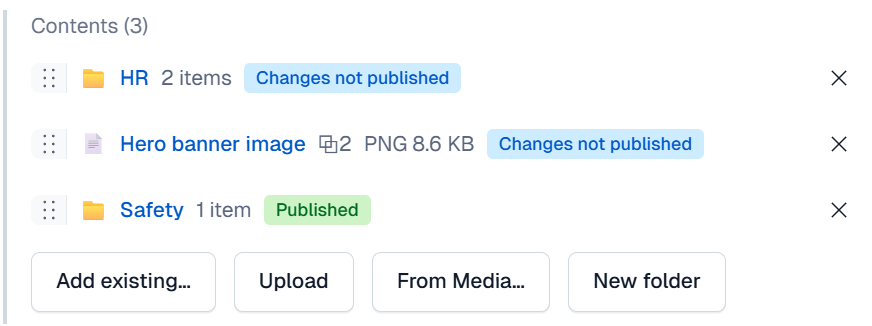
- Contents lists the items in order. Drag to reorder, and use the remove control to take one out. Add existing… picks from the tree, Upload uploads files, From Media… turns assets already in Media into file items and New folder creates one. A file shows its type and size, and a folder its item count.
- On a file, Upload or Replace changes the attached file. It works the same as in the explorer. Choose from Media attaches an asset that's already in Media. The file name opens the asset.
- A field that another app's editor controls is shown as text with a note to edit it in the default editor tab.
- It edits one language at a time. See Languages.
Languages#
In a space with more than one language:
- The explorer, the sidebar and the tree picker show titles and files in the space's default language. Uploads and File from Media… fill in the default language.
- The entry editor edits one language at a time: the one Contentful has focused. Choose it in the entry's locale settings.
- Kind, slug, version label and folder contents are shared by every language. Title, description and file can differ.
- In another language, an empty title shows what Contentful falls back to in the header. A file item with no file of its own in that language shows the fallback language's file, marked "used until this language has its own". It doesn't count as a missing file, because the Delivery API serves the fallback.
- Upload or Choose from Media gives that language its own file. Replace appears only once it has one, so the default language's file is never overwritten from another language.
- Publishing, unpublishing and deleting a file item's files cover every language's file.
The sidebar#
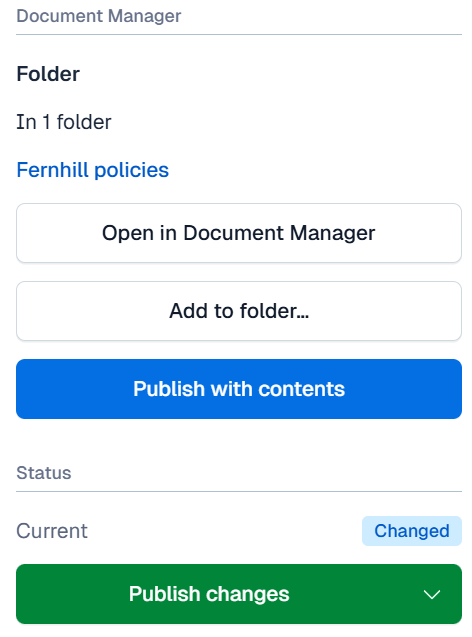
In a Document item's sidebar, Document Manager shows:
- its kind and the folders it is in, each as a link that opens the explorer at that folder
- its warnings
- Open in Document Manager, which opens a library or folder itself, or a file's first folder. A file in no folder opens Not in any folder.
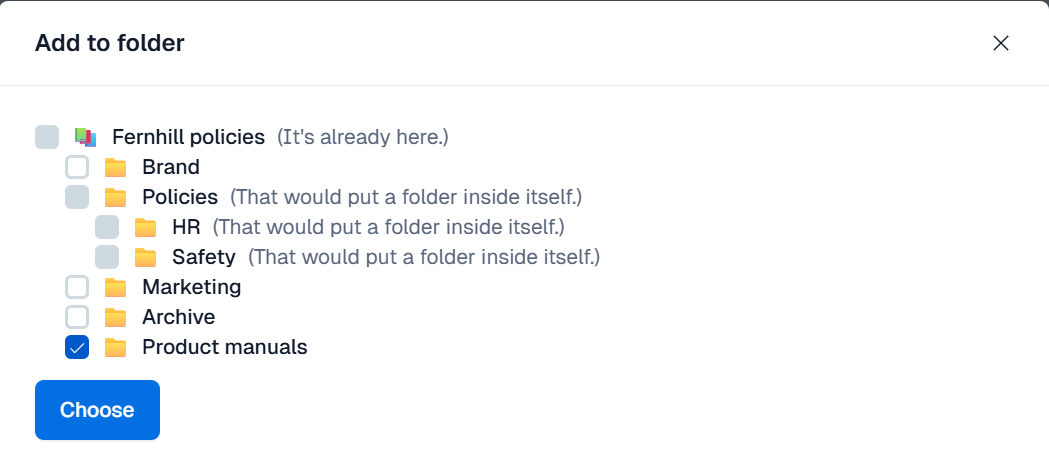
- Add to folder…, which picks a folder and adds the item. A refused placement shows the reason.
- Publish with contents, on libraries and folders, which publishes the item and everything inside it, with their files.
- Publish with file, on files, which publishes the item and its file.
The tree picker#
On the reference fields you ticked at install, the field shows Choose from Document Manager. It opens the tree with libraries, folders and files.
- A single reference is replaced by the new choice. A list appends the choices and skips duplicates.
- Each row shows an icon, title, example path, such as
Policies › HR, and publish state. - In a list you can drag to reorder and remove entries. A link to an entry that isn't a Document item shows as Other entry and can be removed.
- If the field has a maximum size, the button is disabled at the limit. A pick over the limit adds only what fits, with a message.
- A read-only field hides the controls.
Installation details#
The content type#
The setup screen asks for a Content type ID. The default is documentItem.
- If the content type doesn't exist, Document Manager creates and publishes it as Document item, with seven fields:
title,kind,slug,description,file,versionLabelanditems. - If it exists with those fields, Document Manager reuses it as it is. Extra fields on it are fine. They become custom fields.
- If it exists with different fields, installation stops and lists the problems. Document Manager never changes an existing content type.
On save, Document Manager also:
- makes its own editor the first tab of a Document item, with Contentful's default editor second
- puts its sidebar widget at the top of the sidebar
- adds Document Manager to the main navigation
The ID can't be changed after install. A different ID would start an empty new type and leave your items behind.
Picker field checkboxes#
Under Tree picker for reference fields (optional), the setup screen lists reference fields on your other content types that can link to Document items. Each shows the content type, the field and what it links to.
- Tick a field to replace Contentful's reference picker on it with the tree picker.
- Untick a field and save to put back Contentful's built-in picker.
Ticking is optional, and you can change it at any time.
Your own copy of the app#
To install your own build instead of the Marketplace app, an organisation admin first creates the app definition. In Contentful, open Organization settings → Apps → Create app and set:
| Setting | Value |
|---|---|
| App URL | Where the app is hosted, or Hosted by Contentful once you upload a bundle |
| App configuration screen | Ticked |
| Page | Ticked, with Show app in main navigation on and the link name Document Manager |
| Entry editor | Ticked |
| Entry sidebar | Ticked |
| Entry field | Ticked, with field types Short text, Entry reference and Entries list |
| Home | Leave unticked |
The app's dialog location needs no setting. It is always available.