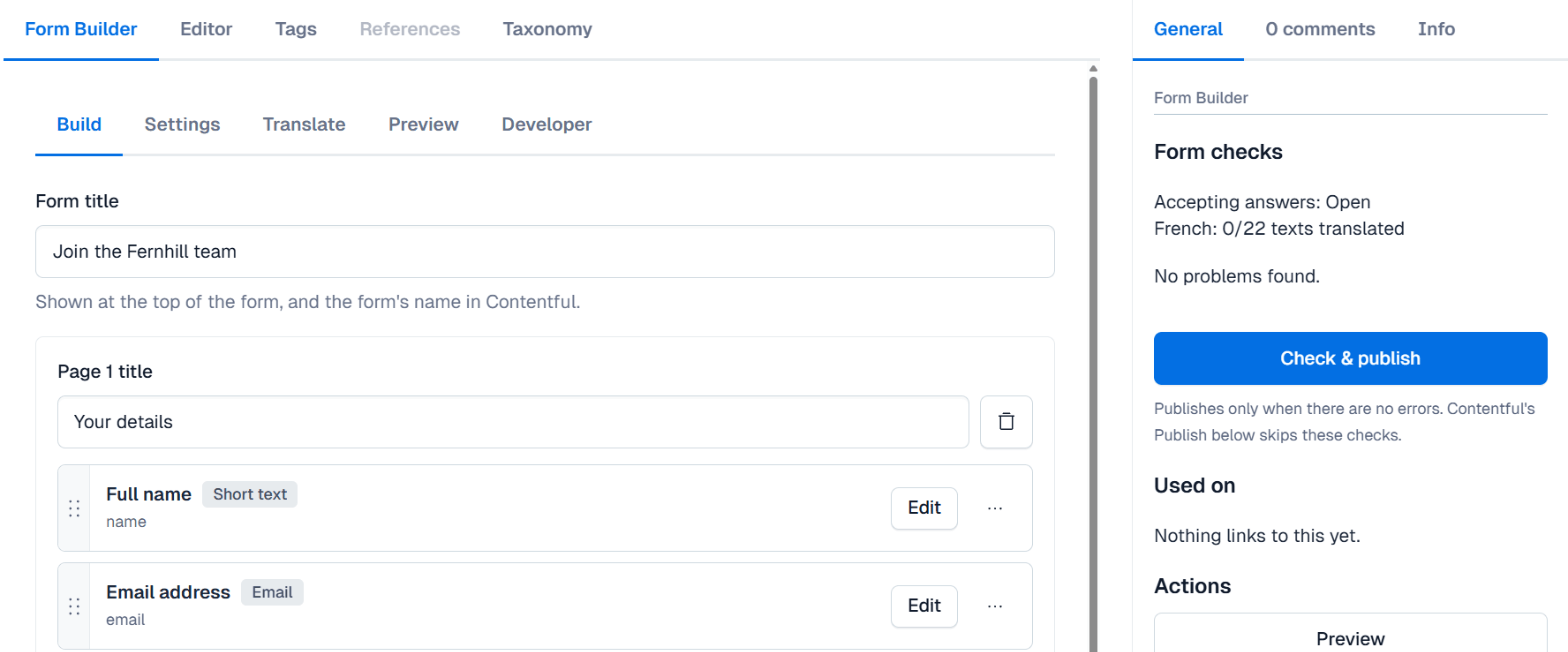
Open a form from Apps → Form Builder, or from the entry list. The Build tab starts with the form's title, which is shown at the top of the form and is also its name in Contentful. Below it are the form's pages and items. Add opens a picker of fields, layout items and blocks; Edit shows an item's settings in place of the list; Done or the back arrow keeps your changes and Cancel undoes them. The Preview tab shows the form as visitors see it.
Field types#
| Type | What it collects |
|---|---|
| Short text | Names, titles and short answers |
| Long text | Messages and longer answers |
| An email address | |
| Phone | A phone number |
| Number | A number, optionally whole numbers only |
| Web address | A link starting with http:// or https:// |
| Date | A calendar date |
| Time | A time of day |
| Dropdown | One choice from a list |
| Radio buttons | One choice, with every choice visible |
| Checkboxes | Any number of choices |
| Yes/No | A single yes or no answer, shown as a checkbox or a switch |
| Consent | A tick box with a formatted label |
| Hidden | A value sent with the form but not shown |
Dropdown, Radio buttons and Checkboxes need at least one option, and no option value can repeat. Each option has a value, which is stored in the data, and a label, which visitors read and which is translated per locale.
Browser autofill#
Text-like fields and dropdowns have a Browser autofill setting, under Prefill and autofill. It tells the visitor's browser what the field holds, such as First name, Postcode or Country, so the browser can fill it from saved details. It also tells assistive technology what the field is for, which is a WCAG 2.2 AA requirement for fields about the visitor.
Email, phone and web address fields use Email address, Phone number and Website unless you choose otherwise. Choose Don't autofill for fields that are about someone else, such as a guest's name.
Layout items#
A heading, a paragraph (with bold, italic, lists and links) and a divider break a form into sections. They hold no answer and add nothing to the data.
Pages#
A form has one page, or several for a multi-step form. Add a page, give it a title and move items between pages. The Next and Back buttons are used when there is more than one page.
Field IDs#
Every field has an ID, the key of its answer in the data. IDs:
- start with a letter and use only letters, numbers and
_, up to 64 characters; - are unique across the whole form, including the fields of its blocks;
- can't be a reserved name:
form,pageandafterSubmithold the form's own texts, and names such asconstructorare built into JavaScript.
The builder suggests an ID, and you can change it until the form is first published.
Locking#
After a form is first published, its field IDs lock:
- A published field's ID can't change, and can't be reused with another type.
- If you remove a published field, its ID is retired. You can add the same ID back with the same type (the builder offers Restore it), but not with a different type.
This keeps the keys of stored data stable when labels and layouts change. The builder compares against the last published version while you edit, so an error appears at once. Contentful's own Publish button stays available, so check the sidebar before you publish. The app's sidebar has its own Check & publish button, which refuses to publish while errors exist.
Sidebar#
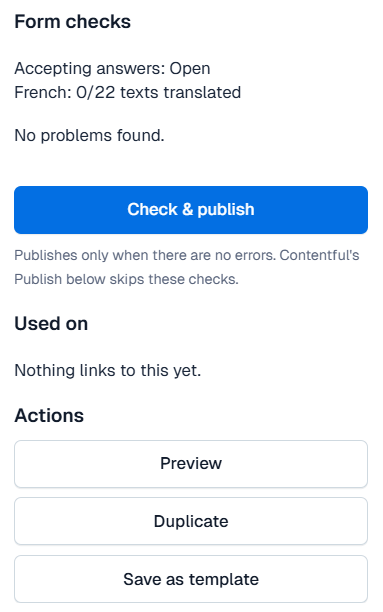
The sidebar shows problems and warnings, how complete each translation is, whether the form is open, closed or scheduled, and which entries link to it. It also has Preview, Duplicate and Save as template.