
A conditional field is shown only when an earlier answer matches. Use it for a follow-up such as "Tell us more" that matters only when someone picks "Other".
Add a rule#
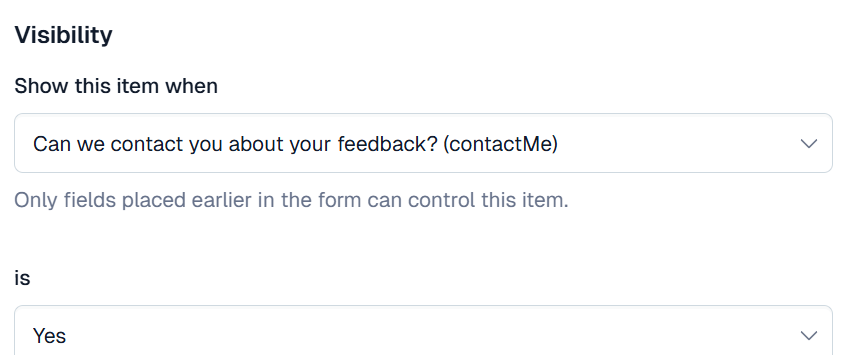
Select an item, then in its settings choose Show this item when and pick the controlling field. Any item can have a rule: fields, layout items and blocks.
| Controlling field | You choose | The item is shown when |
|---|---|---|
| Dropdown | One or more options (is any of) | the answer is one of them |
| Radio buttons | One or more options | the answer is one of them |
| Checkboxes | One or more options | at least one ticked box is one of them |
| Yes/No | Yes or no | the answer matches (empty counts as no) |
Rules to know#
- The controlling field must come earlier in the form than the items it controls.
- An item has one rule. Combining several rules isn't supported.
- Chains work. An item is shown only if its controlling field is shown and the rule matches.
- A rule that points at a field that doesn't exist, at the item itself, or in a loop is reported as an error. So is a rule that names an option the controlling field doesn't have.
- A rule on a block applies to every field in it, unless a field in the block has its own rule.
Hidden fields#
A hidden field isn't required and isn't validated, and your website shouldn't send its answer. The Preview tab behaves the same way, so you can try it. Apply the rule in your own code before you validate or store answers. See Building the form UI.
In the submission type and JSON Schema in the Developer tab, a field with a rule is optional, because a hidden field is empty.