
Open a form and use the Settings tab.
Status and schedule#
- Status is Open or Closed. A closed form is closed whatever the schedule says.
- Opens at and Closes at are optional, in your local time, and stored as ISO date-times. Closing must be after opening.
A badge shows the state right now: open, closed, scheduled (before the opening time) or ended (after the closing time). Your website decides what to show when a form isn't open. The Message when the form is closed text is there for that.
Status and schedule changes reach your website only when the form is published.
Open and close from the forms list#
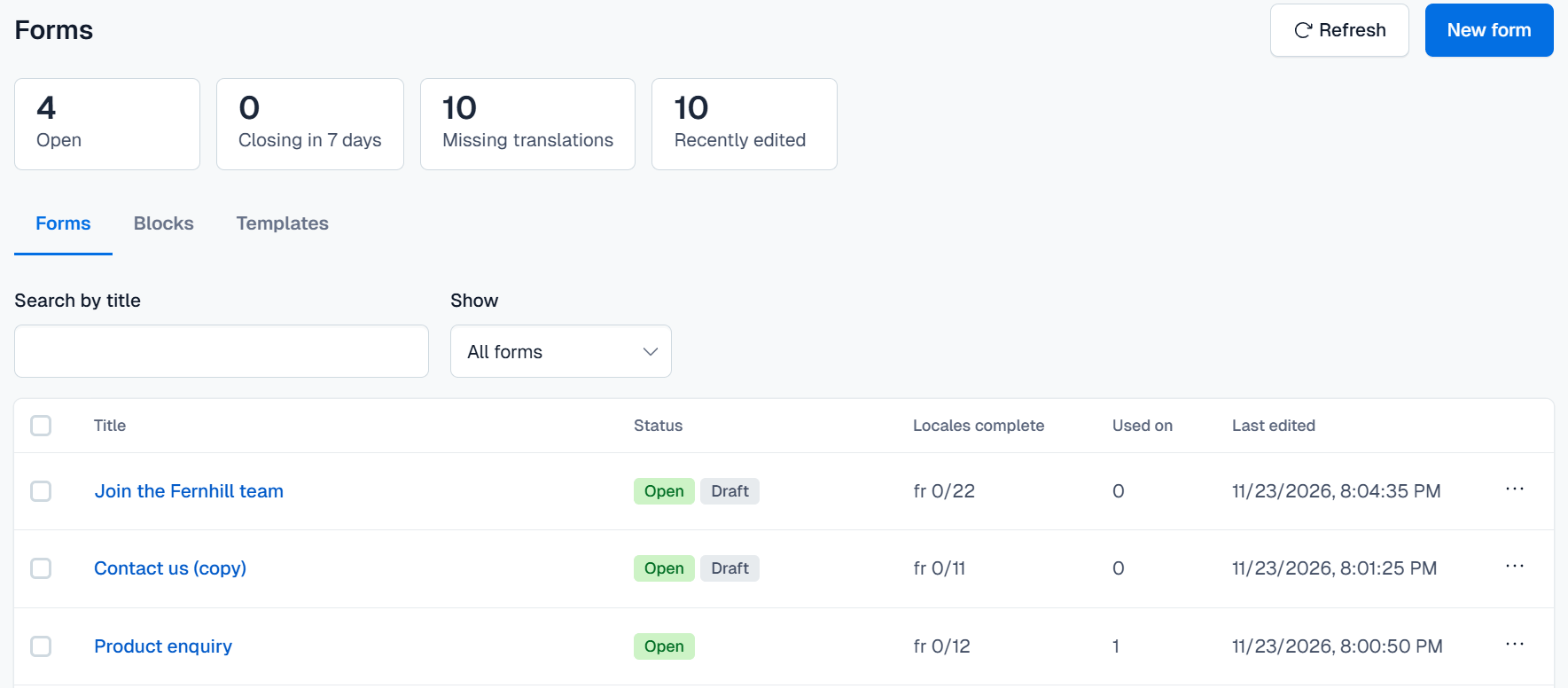
The Forms tab in Apps → Form Builder lists forms with search and filters (open, closed, scheduled, missing translations, closing in 7 days, recently edited). Select one or more forms to open or close them together.
- Open and publish and Close and publish save and publish in one step, after the same checks as Check & publish. A form with errors is left unchanged and listed with its first error. They appear only if you can publish in Contentful.
- Open (draft only) and Close (draft only) save the change without publishing.
A form with unpublished changes shows a Changes not published badge. The summary strip at the top counts open forms (published ones only, since visitors can't reach a draft), forms closing in 7 days, forms with missing translations and recently edited forms.
After submit#
Choose what your website should do after a successful submit:
- Show a message: a rich text message.
- Go to a web address: an absolute
https://address. - Go to an entry: pick an entry. Your website decides how an entry becomes a page.
The app only stores this choice. Your website carries it out.
Texts#
The same tab holds the submit, next and back button texts, the closed message and the error summary title and text. These are the default locale's texts. Other locales are in the Translate tab.
Custom properties#
Custom properties are key and value pairs stored on the form for your website or CRM, such as a campaign type. If an admin set up a list in the app configuration, editors pick from it, with allowed values where given. Otherwise editors add their own keys, starting with a letter and using letters, digits, _ and ..
App configuration#
The configuration screen opens on install, and later from your space's list of installed apps. It holds the content type and three optional settings.
Content type. The default ID is formBuilderForm.
- If the content type doesn't exist, Form Builder creates and publishes it, named Form, with five fields:
title,kind,definition,textsandlinkedEntries. Onlytextsis translated. - If it exists with those fields, Form Builder reuses it as it is.
- If it exists with different fields, installation stops and lists the problems. Form Builder never changes an existing content type.
Form Builder sets its own editor as the first tab of a Form entry and keeps Contentful's own editor as a second tab. In that second tab the definition field shows a short summary with an Open builder button. The raw JSON isn't edited by hand.
linkedEntries is kept up to date by the app. It lists every entry the form refers to (its blocks and an after-submit entry), so Contentful shows incoming links and delete warnings, and one API call can return a form with its blocks. It's hidden from editors. Don't edit it.
Form Builder doesn't use the Contentful Home location, so it doesn't replace your space's Home tab.
Optional settings:
- Default texts: the submit, next and back buttons, the closed message, the error summary and the default message for every validation rule, per locale. New forms start with these.
- Prefill keys: a list of site keys your website supports, such as
user.email. Editors pick from this list when a field should be filled from your site. - Custom properties: a list of keys, with labels and optional allowed values, that editors set on a form, such as a campaign type for your CRM.